
Your whole operation at a glance.
The Dashboard is home base — who's calling, what they want, and whether the AI's got it. Here's how to read it and step in when you want to.
Open KlevaDesk and the Dashboard is the first thing you see — a snapshot of everything that's happened since you last checked in, and the controls to take over if you need to.
Is the AI on duty?
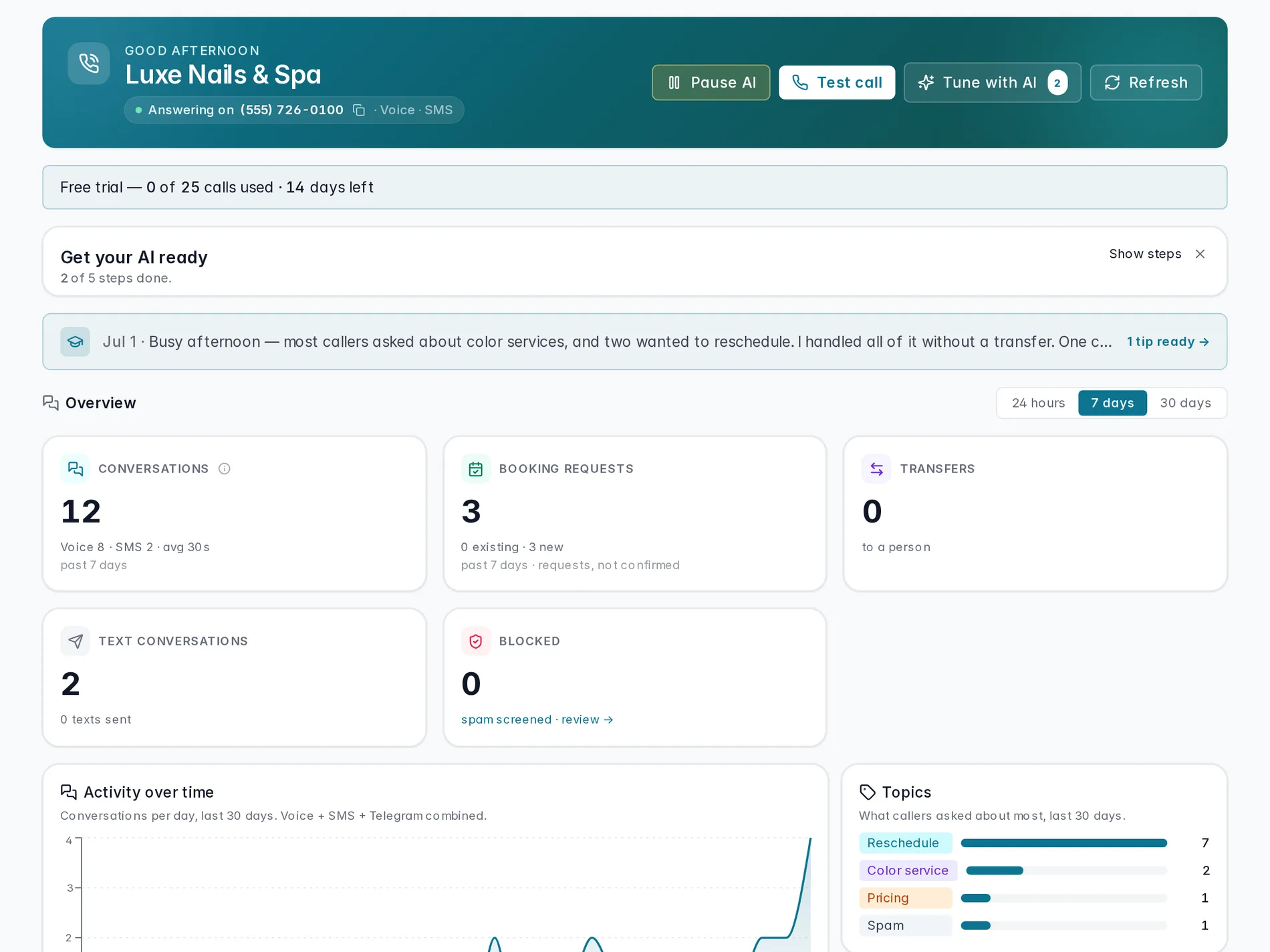
At the top, a dark banner tells you the AI is live: Answering on (555) 726-0100, with a channel line underneath — Voice · SMS · Telegram — showing everywhere it's picking up. The big control here is Pause AI. Pausing means you're taking over; the AI stops answering until you hit Resume AI to hand it back. Next to it, Test call places a call to your own AI right from the browser so you can hear exactly what callers hear, and Tune with AI jumps straight into adjusting how it sounds and behaves.
Your numbers, at a glance
Switch the window between 24 hours, 7 days, and 30 days, and the tiles below update to match. Conversations counts voice calls and texts together. Booking requests is exactly that — requests, not confirmed appointments, since a person still approves each one. Transfers is how many calls were handed to a person, and Blocked is spam the AI screened out before it ever reached you.
What callers asked about
Below your numbers, Activity over time charts conversations per day so you can spot a busy Saturday or a quiet Tuesday at a glance. Next to it, Topics rolls up the tags the AI applied most often — reschedules, color services, pricing questions — so you know what's driving the phone without reading every transcript.
Pick up where you left off
Underneath, a Coach briefing strip summarizes what your AI noticed since you last looked, and Recent conversations lists the newest calls and texts. Click View all → to jump straight into the full Conversations inbox when you want to dig into any of them.
Watch it in action
A quick walkthrough of reading the Dashboard and stepping in when you need to:
A tour of your Dashboard
On duty status, today's numbers, and where to look next.
Coming soonWant the full detail on any one call — recording, transcript, tags? See Conversations. And to choose how you're pinged the moment something needs you, set up Owner alerts.
Still stuck? We answer fast.